Use MegaForm with SQL Server
MegaForm supports SQL Server as the main Umbraco database and as a named database for SQL-backed forms, reusable choices and workflow actions. Use MegaForm.Umbraco 2.0.69 or later for the installation, provider-selection and submission-connection fixes described here.
Configure the Umbraco database
Install the package in an Umbraco application:
dotnet add package MegaForm.Umbraco --version 2.0.69
Configure the existing Umbraco connection with the SQL Server provider. This example uses Windows authentication; replace the server and database names with your own values.
{
  "ConnectionStrings": {
    "umbracoDbDSN": "Server=YOUR_SQL_SERVER;Database=YOUR_UMBRACO_DATABASE;Integrated Security=True;Encrypt=True;TrustServerCertificate=False;",
    "umbracoDbDSN_ProviderName": "Microsoft.Data.SqlClient"
  }
}
For SQL authentication, keep the password in your hosting configuration or secret store. Do not put connection credentials into a form's JSON, an AI prompt or public JavaScript. Configure a certificate trusted by the application server when using encrypted SQL connections.
Start Umbraco and allow its package migrations to finish. MegaForm creates its MF_* tables through the native Umbraco package migration lifecycle. The database account needs permission to create and upgrade these tables during installation. Existing migration names and state identifiers are retained on upgrade.
Understand the connection names
| Connection | Purpose |
|---|---|
umbracoDbDSN |
The configured CMS database, with its configured SQL Server or SQLite provider. |
DashboardDatabase |
The database configured in MegaForm's Database settings. If no separate database is configured, it uses the CMS database and its provider. |
| A saved named connection | An administrator-managed connection for a separate application database. Choose its actual provider when saving it. |
Changing a form's SQL destination does not migrate the Umbraco CMS database. A form can use a separate SQL Server table while the CMS itself uses another supported database.
Create a form connected to a SQL table
- Open MegaForm in the Umbraco backoffice.
- Configure the named SQL Server connection in Database/Data Source settings.
- Use the table form wizard to inspect the table and its columns. Check its primary key, identity columns, required columns and insert permissions.
- Review the generated fields and column mappings before publishing.
- Submit fictional data and inspect the destination table and the form's entries.
Do not map a visitor-editable field to a server-generated identity column. Review table permissions and mappings whenever the table structure changes. See SQL table forms for the complete binding and submission-table workflow.
Reuse SQL choices as prevalues
Create a SQL prevalue source and select its named SQL Server connection. Return a value column followed by a label column:
SELECT Code AS value, Label AS label
FROM dbo.Workshops
WHERE IsActive = 1
ORDER BY Label;
For cascading choices, use supported :parameter tokens and pass the parent field through the source's parameter mapping. Values are bound as database parameters. A prevalue query reads options; it does not save the submitted form or replace a table binding.
Test the source in the backoffice, select it on a Dropdown, Radio or other choice field, and check the published form. See Prevalue sources.
Write to SQL Server after submission
Use the workflow Service Task (DB) node with a named connection. The visual editor currently offers Insert and StoredProcedure, with direct column/parameter mappings. The runtime also supports Update and Upsert in reviewed saved/imported graphs; those configurations need explicit FieldMappings and WhereMappings. Keep connection strings on the server.
Validate the workflow, publish the reviewed graph, submit fictional data and inspect the actual SQL row together with workflow history and retry. A workflow attempt and a SQL row are separate evidence; verify both.
Verified configuration
The 2.0.69 fixes were exercised with Umbraco 17.6.2 and SQL Server Express 17.0.1000.7. A new database was installed from empty, followed by checks for form/submission CRUD, Unicode and numeric values, filtered entries, SQL prevalue persistence, cascading parameters, and workflow Insert/Update/Upsert. A real browser submission was then checked directly in SQL Server, including its indexed Unicode and numeric values.
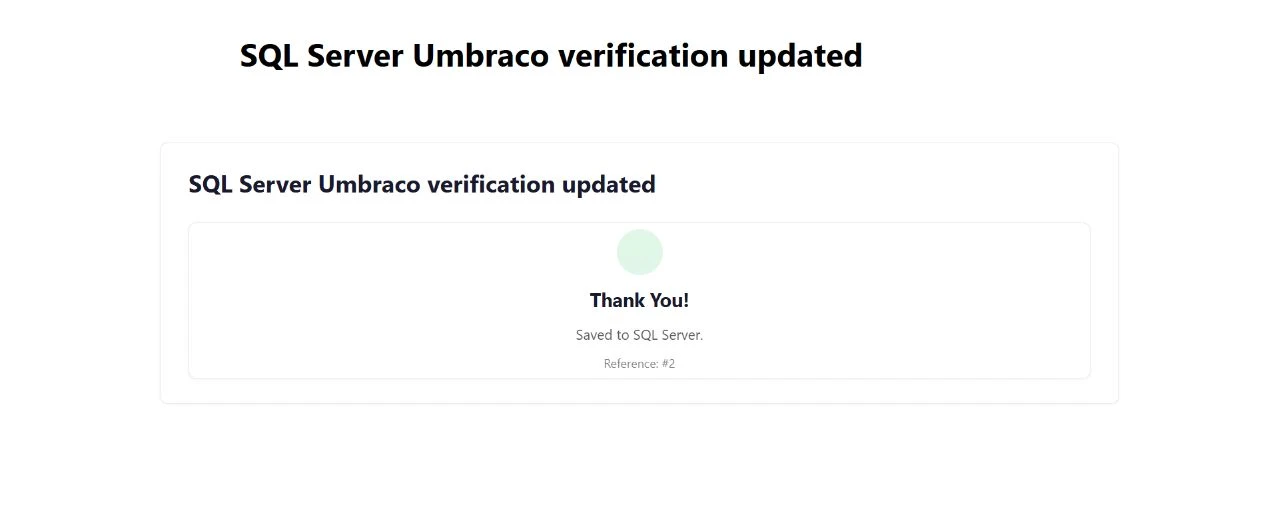
This demonstrates that tested configuration; it does not claim that every hosting, SQL Server or Umbraco version has been exercised. The public SQL workshop example uses the demonstration site's SQLite database. The SQL Server setup above uses the same MegaForm concepts with the SQL Server provider.
Troubleshooting
- Missing
MF_Formson a new installation: update to 2.0.69 or later, inspect the Umbraco package migration log and check the database account's DDL permissions. - A SQL Server connection is treated as SQLite: verify
umbracoDbDSN_ProviderNameand the provider on any separate saved connection. Update older MegaForm versions whose CMS fallback forced SQLite. - A submission fails after indexing: use 2.0.69 or later. Its indexer uses a separate owned connection, preserving the request's EF database connection for subsequent work.
- Empty choices: test the prevalue source, review its selected connection and parameters, and check that it returns value/label columns.
- An existing business table rejects an insert: review required columns, server-generated columns, mappings, SQL permissions and the table wizard's capability report.