Watch the walkthrough
The recording starts with a template and edits a new Tutorial copy in the builder. Existing gallery forms remain separate.
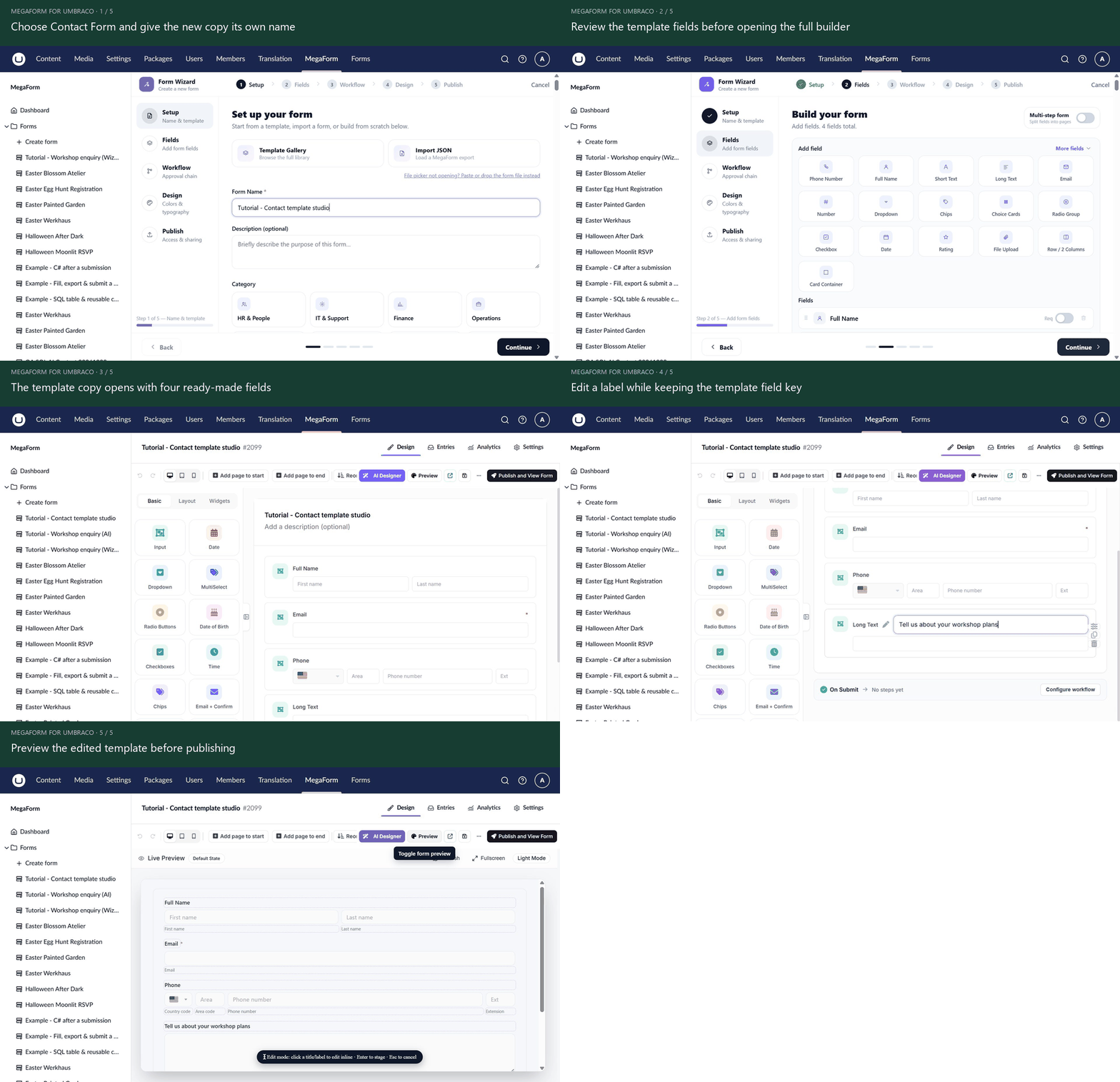
Open the animation at full size.
Pick a starting form
Open Dashboard → New Form. Choose a quick-start template, or open Template Gallery to browse the installed/online catalogue. Search by purpose, inspect the fields and select the design.
Give your copy a distinct name before creating it. Review the wizard's Fields, Workflow, Design and Publish steps; a template may already contain fields and settings that you do not need.
The live Umbraco template gallery is also useful for comparing designs before returning to the backoffice to create your own copy.
Edit it with the builder
Select a field on the canvas and change its label, help text, required flag or options in Field Properties. Keep stable keys when rules, calculations or mappings already refer to them.
Save the draft and open Preview. Check that the changed label and validation appear in the visitor form. For a custom HTML template, use its supported content/design controls and verify that field bindings remain connected.
Or refine it with AI
Open AI Designer in the existing form's builder. Describe the change and what should be preserved:
Keep this template's layout, colours, images and field keys. Rename the message label to “Tell us about your workshop plans”, make it optional and add helpful example text. Do not change workflows or integrations.
Review the staged result before applying it. If a template has custom markup, check the actual live page after an AI change; a field list alone does not prove that its designed shell still binds correctly.
Check more than the first screen
Verify image URLs, sliders, conditional questions, mobile width and the final submit. Change sample dates, event details, recipients and any external destinations before using a template for real visitors.
Continue with Theme integration or AI creation.