Watch the walkthrough
This recording uses the real MegaForm section in the Umbraco backoffice. It creates Tutorial - Workshop enquiry (Wizard) with name, email and message fields.
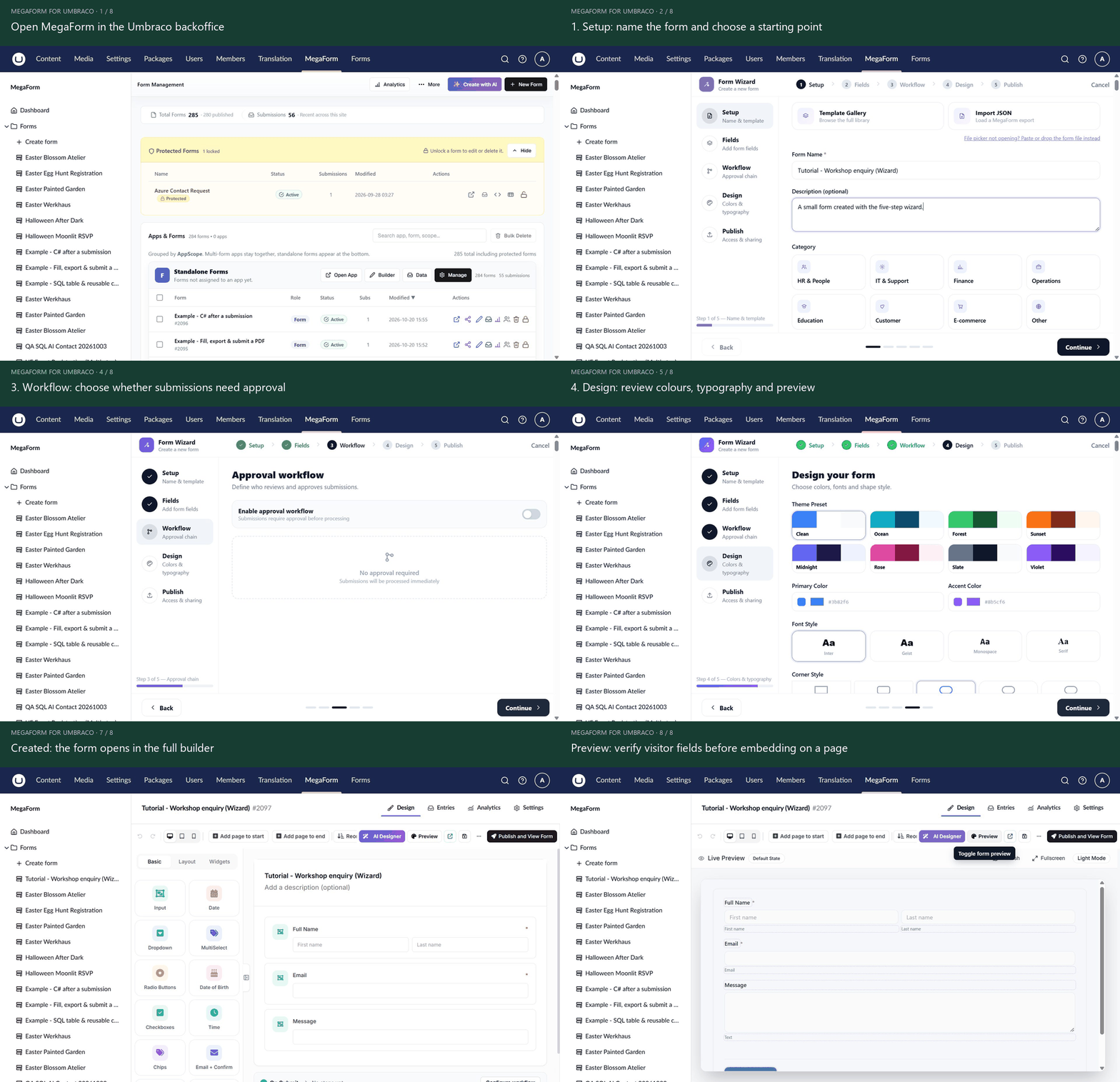
Open the animation at full size.
1. Setup — name and starting point
Open MegaForm → Dashboard → New Form. Enter a meaningful name and an optional description. Start with Blank Form, choose a quick-start form, use Template Gallery, or import a MegaForm JSON file.
In this example, choose a blank starting point and name it Tutorial - Workshop enquiry (Wizard). Select Continue.
2. Fields — collect the right answers
Add Full Name, Email and Long Text. Rename Long Text to Message. Switch Req on for name and email, and leave Message optional.
The wizard also supports a multi-step layout. Use it when there are distinct stages, rather than adding steps to a short enquiry form.
3. Workflow — decide who reviews
Choose whether submissions require an approval chain. The example leaves approval disabled, so a submitted enquiry can be processed immediately. If you enable approval, select real site users/roles and verify the reviewer experience in My Inbox.
4. Design — review the appearance
Choose colours, typography and corners. Check the preview and keep the layout suitable for the width available on the published content page. Custom gallery designs may preserve their authored shell instead of behaving like a blank form.
5. Publish — review access and create
Review Public, Members Only or Restricted access, response options and an optional close date. Select Create Form. This example creates a Published form and opens it in the full builder. Check Preview before embedding it on a content page. Save draft can move later edits back to Draft; Publish and View Form publishes the current definition and opens its live route.
The wizard's access step does not replace publishing the Umbraco content page. Use the Form Picker guide to place the selected form on a page and publish that page.
Verify the result
Check required-field messages, email validation, narrow layouts and the confirmation. Submit fictional data and inspect Entries. If you add an integration, verify its own result as well.