Watch the walkthrough
The recording sends an English request to the configured AI provider, reviews the actual generated form and saves a new copy. No API key is shown in the recording.
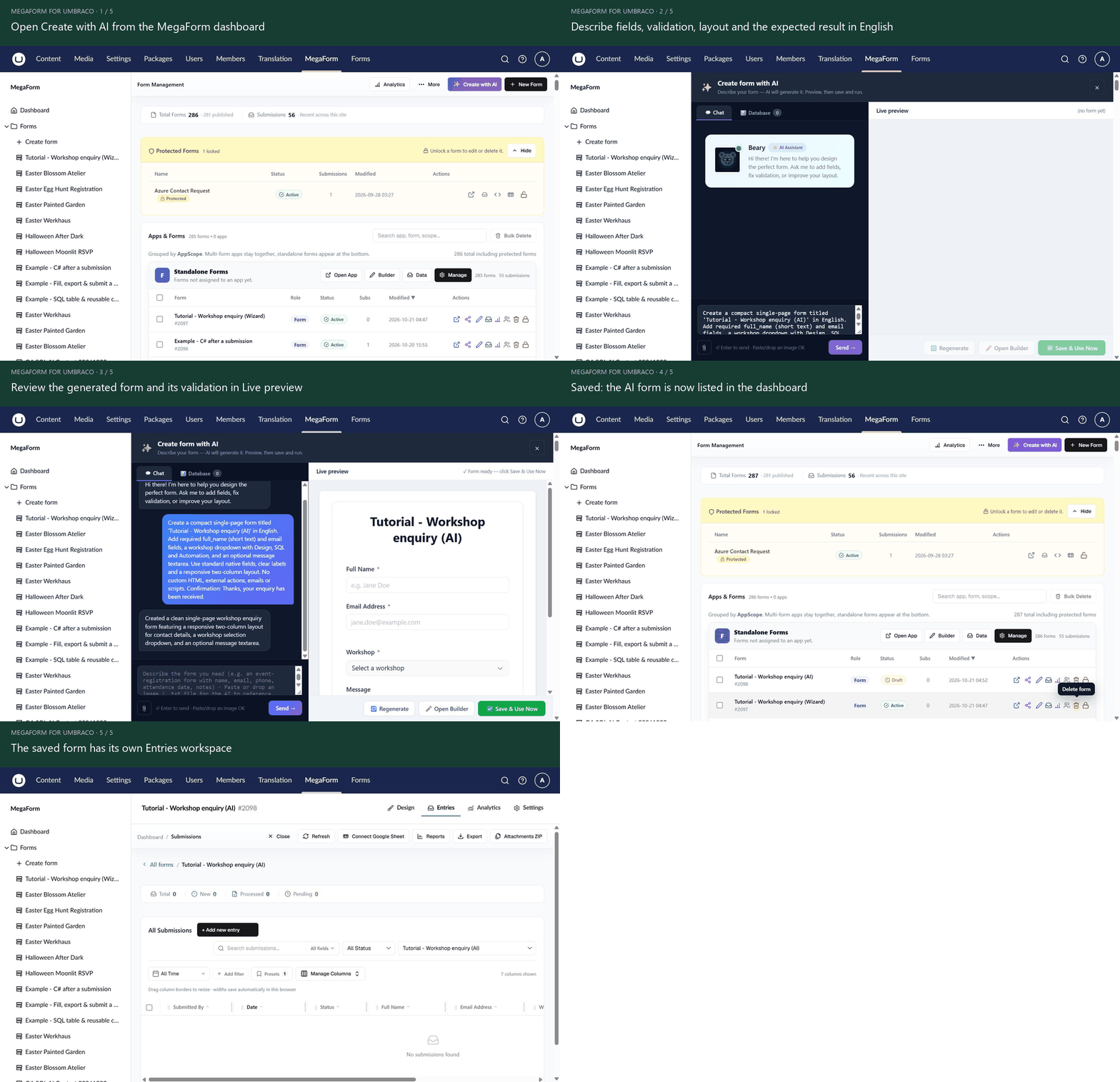
Open the animation at full size.
Before you start
An administrator must enable AI and configure a working provider, model and server-side key in Settings → AI Settings. See AI setup, prompts & review. Use fictional requirements when practising.
Describe a bounded result
Open Dashboard → Create with AI. The example uses this prompt:
Create a compact single-page form titled 'Tutorial - Workshop enquiry (AI)' in English. Add required full_name (short text) and email fields, a workshop dropdown with Design, SQL and Automation, and an optional message textarea. Use standard native fields, clear labels and a responsive two-column layout. No custom HTML, external actions, emails or scripts. Confirmation: Thanks, your enquiry has been received.
Select Send and wait for the response. Generation time depends on the model and provider. Do not send the same request again while a response is still being produced.
Inspect Live preview
Check the generated field types, labels, required flags and dropdown choices. A model may make an answer required even if your prompt did not explicitly request it; review the preview and builder rather than assuming every detail matches.
Ask for a small follow-up change when needed, for example:
Keep all field keys and options. Make workshop optional and rename Message to “Anything else?”. Do not add integrations.
Save and continue editing
Select Save & Use Now to persist the form, or Open Builder for detailed editing. Confirm the form's name and ID after saving. Review settings and use Preview before publishing.
AI generation creates a form definition. It does not configure your site's SMTP, create a production database table or approve C# scripts merely because a prompt asks for them. Those operations need their normal configuration and permissions.
Publish on native content
Choose the saved form through a MegaForm Form Picker, then publish the content page. Verify the public submit and the resulting entry.
For a design that already fits, start from a template and ask AI for a specific change to that existing form.