Watch the walkthrough
This example copies configured actions between dedicated Tutorial forms. It leaves the original demonstration forms untouched.
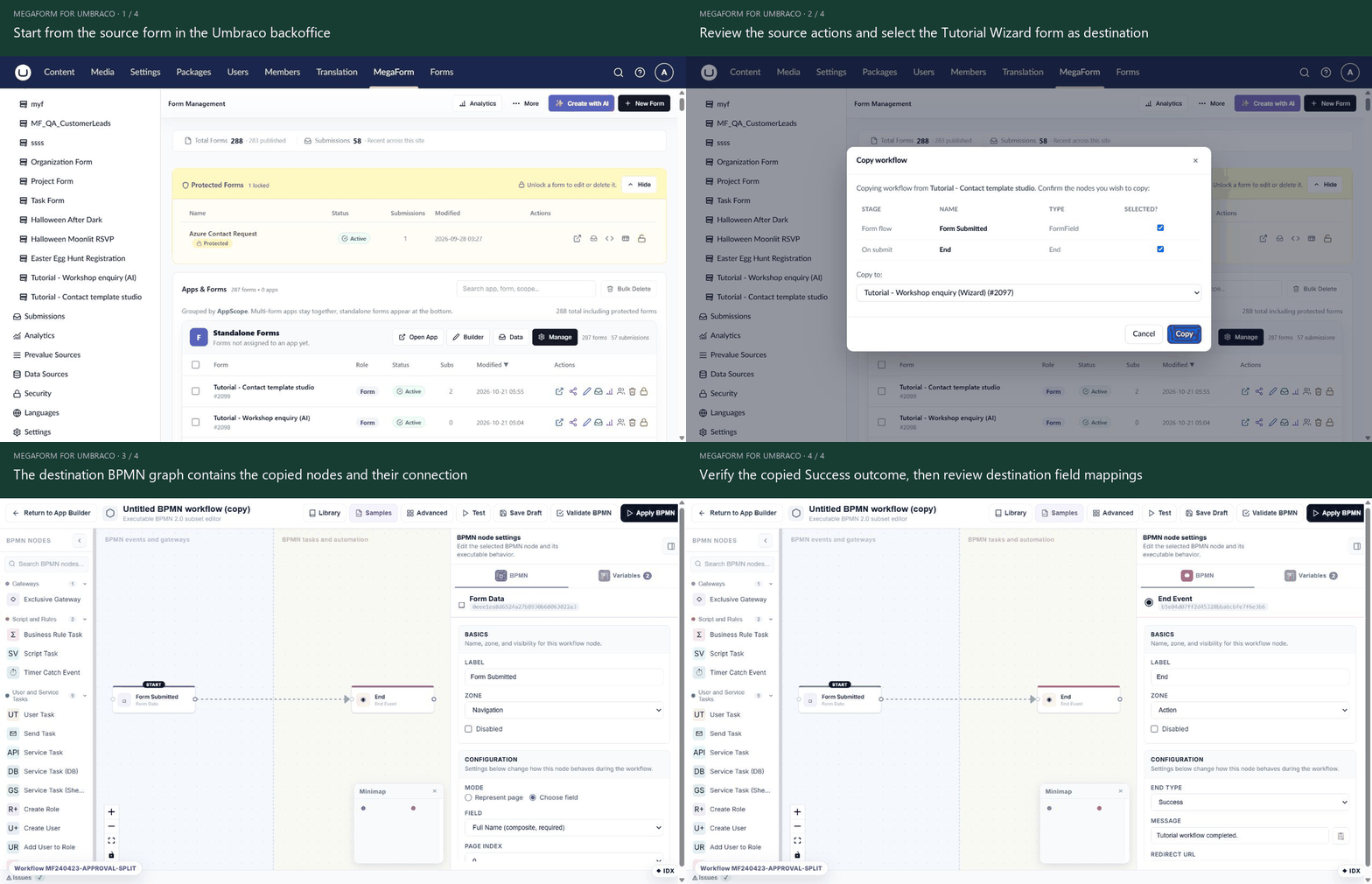
Open the animation at full size.
Choose a source and destination
Open a form's ⋯ action menu → Copy workflow…. Check the source form named in the dialog, choose a different destination form and select the workflow actions that should travel.
Use a destination that has the required fields and connections. A copied action may refer to field keys, role assignments, variables or external configuration that do not exist on the destination.
Understand what is copied
The source's applied workflow is used when available; otherwise its draft is used. Selected nodes receive fresh IDs. Connections between selected nodes are copied; a connection to an omitted node is not included.
The copy is appended to the destination's existing workflow rather than replacing it. Review the destination graph afterwards: copying a disconnected block does not guarantee that the destination's start path will execute it.
The action saves and applies the resulting destination workflow. It is an operational change, so choose the destination deliberately and verify its mappings before using real submissions.
Check the result
Open the destination form's workflow controls and inspect the copied actions and their connections. Confirm that the original destination actions are still present. Update field mappings and host-specific recipients as required.
Submit fictional data and inspect the execution history to verify which actions actually ran. Do not copy a live webhook, payment or notification workflow into a test form without reviewing its side effects.
The builder may also expose Copy workflows within its simple workflow designer. That surface imports selected source actions into the current design; follow its own review/apply controls. The recording above uses the form action menu so the source and destination remain explicit.