Watch the walkthrough
The example uses a dedicated Tutorial workflow with an intentional Failure outcome, corrects that outcome and retries the recorded failed execution. It does not send an email or call an external service.
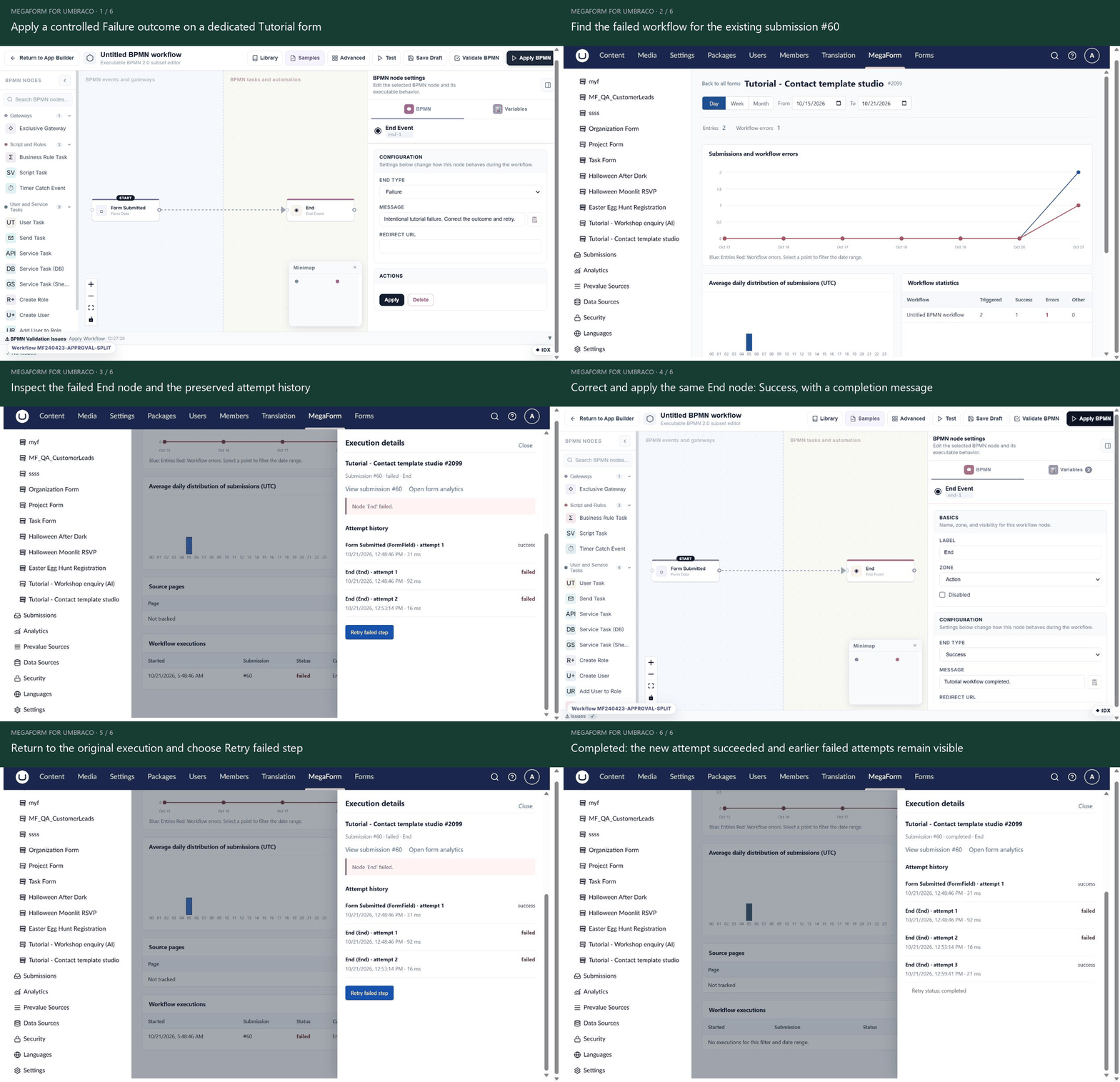
Open the animation at full size.
Find the failing execution
In the Umbraco backoffice, open MegaForm → Analytics. Find your form and select its workflow error count. Under Workflow executions, choose Details / Retry for the failed run. Read the failing node, error and attempt history, and note the form and submission IDs before changing anything.
A saved submission and a completed workflow are separate results. Do not create another submission merely to retry its follow-up actions.
Correct the cause
Fix the failing node's configuration or its dependency, then save/apply the corrected workflow while keeping the node that the execution needs to resume from. The example changes the same End node from Failure to Success. This is a controlled demonstration of retry mechanics; in a real failure, diagnose and repair the actual business or integration problem.
For a webhook, database write or notification, first check whether the destination already received the operation. A timeout can happen after a remote system has accepted a request. Use idempotency keys where supported.
Retry from the recorded failure
Return to the failed execution and choose Retry failed step. Only a failed execution with an available current node can resume through this operation. The engine resolves the form's currently applied workflow and continues from that node; removing or recreating the node can make the old execution impossible to resume.
Verify the new attempt
Refresh/open the execution details and confirm the updated status and new attempt. The original failed step remains in history. Check the final output or actual destination too; a status change is not a reason to ignore an unexpected duplicate side effect.
If Retry fails again, inspect the new error and correct the underlying problem. Repeated clicks without diagnosis can repeat external effects.
See Reports & diagnostics, Workflow basics and Copy workflow.